
How to view an ePub on Readium
Readium is a free Chrome browser extension for reading ePub eBooks. You can easily view the eBook in Readium with just a few clicks. Apart from mouse controls, Readium is also keyboard accessible.
To view an ePub file on Readium, follow the steps mentioned below:
- Open Google Chrome browser and click the Apps icon in the top left corner.

- Click on Store.

- Type Readium in search box.

- At the top of the search results, Readium should appear. Click on + Add to Chrome blue button.

- Then click on Apps again and you will see the Readium logo. Click on it to use Readium.

- Once opened, Readium will appear as shown below:

- Click on + icon. You can now upload ePub from your device.

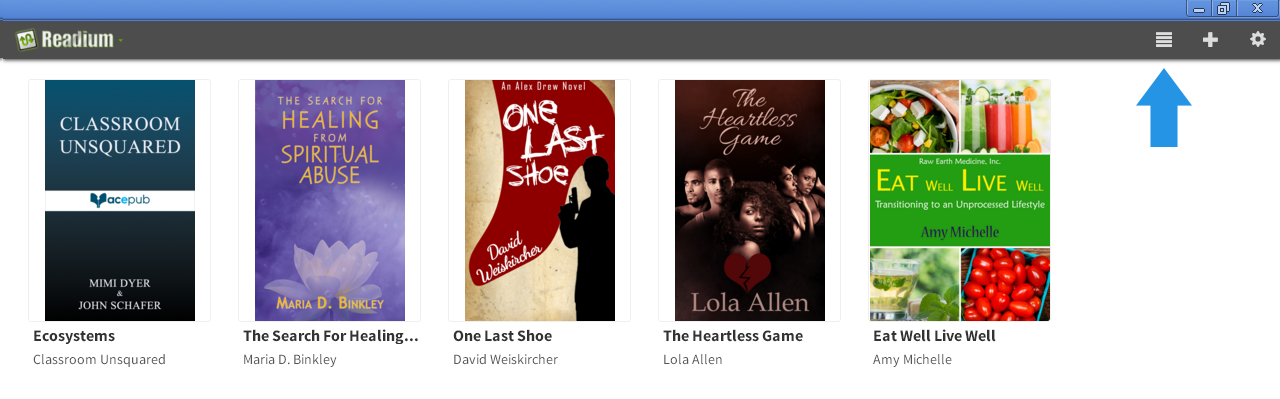
- Multiple ePub files can be added from your device. Each file is distinguished by its cover, book name and author name. You can view the ePub files in your Bookshelf.

- To open the eBook, click on the cover thumbnail. You can easily navigate through the book using left and right arrow keys.

- Features
Readium provides many features to easily access and style your eBook. A few common ones are listed below:- Open your eBook and Click on “Table of Contents” button or press ‘T’ from keyboard to see External TOC.

- Click on “Settings” button to change font size, background color, etc.
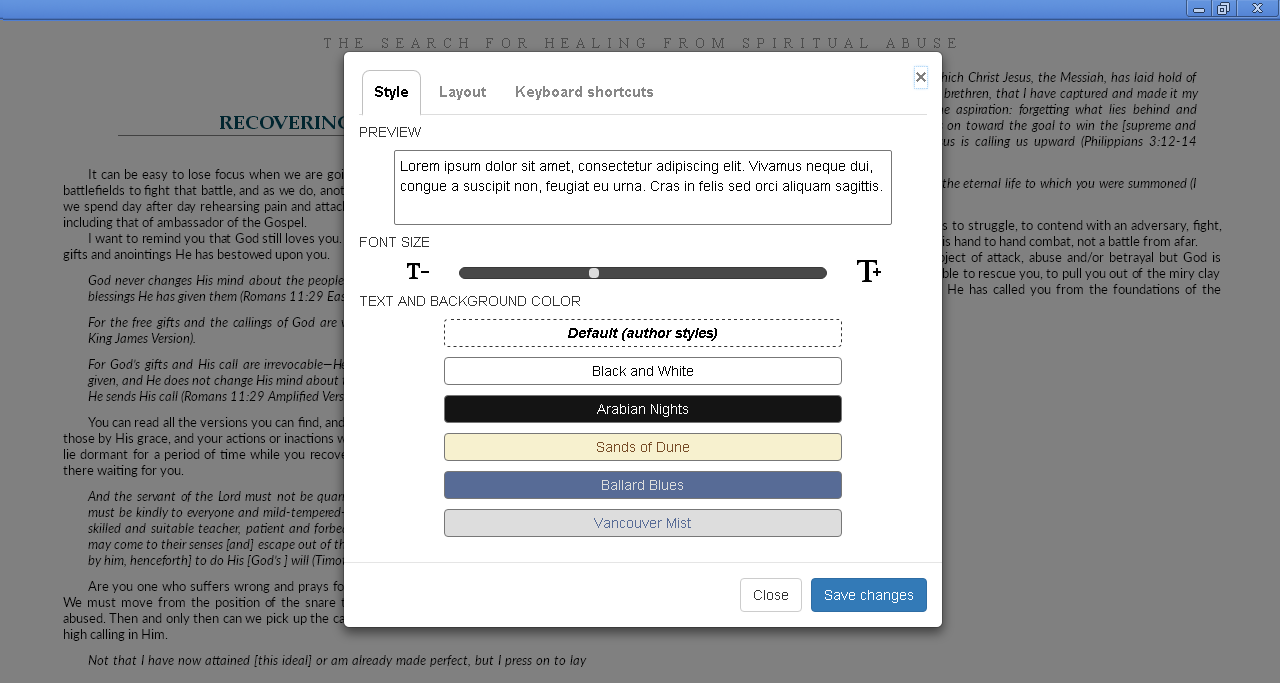
- Open your eBook and Click on “Table of Contents” button or press ‘T’ from keyboard to see External TOC.
- How to delete a book from Readium
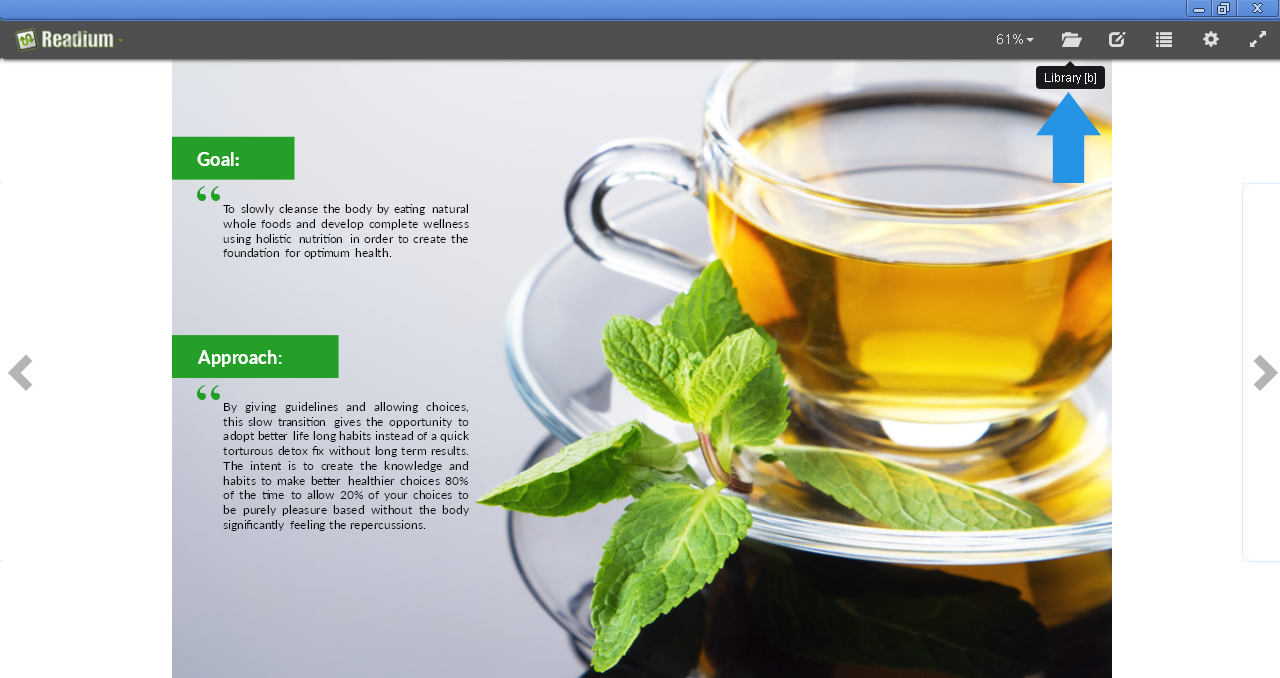
- If your eBook is open in the viewer then click on Library button (If not, you can directly move to Step 2). You will be directed to the Bookshelf.
- Click on the hamburger icon present at the top right corner. It will change the orientation of eBooks from horizontal to vertical. This is called “List View”
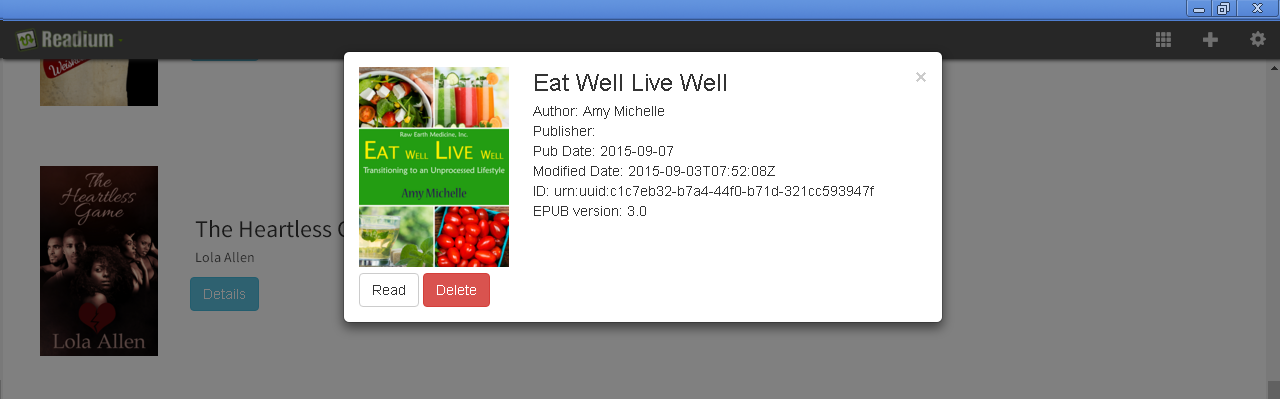
- Now click on Details button of the eBook you want to delete. A popup window will appear as shown in below screenshot. Click on Delete button and your eBook will be removed.
- If your eBook is open in the viewer then click on Library button (If not, you can directly move to Step 2). You will be directed to the Bookshelf.